
Download Snaptube APK Latest Version Android No Ads
Have you ever found a great song or a funny video and wished you could keep it on your phone? Maybe your internet is slow. Maybe you are going on a long trip. That is where Snaptube comes in.
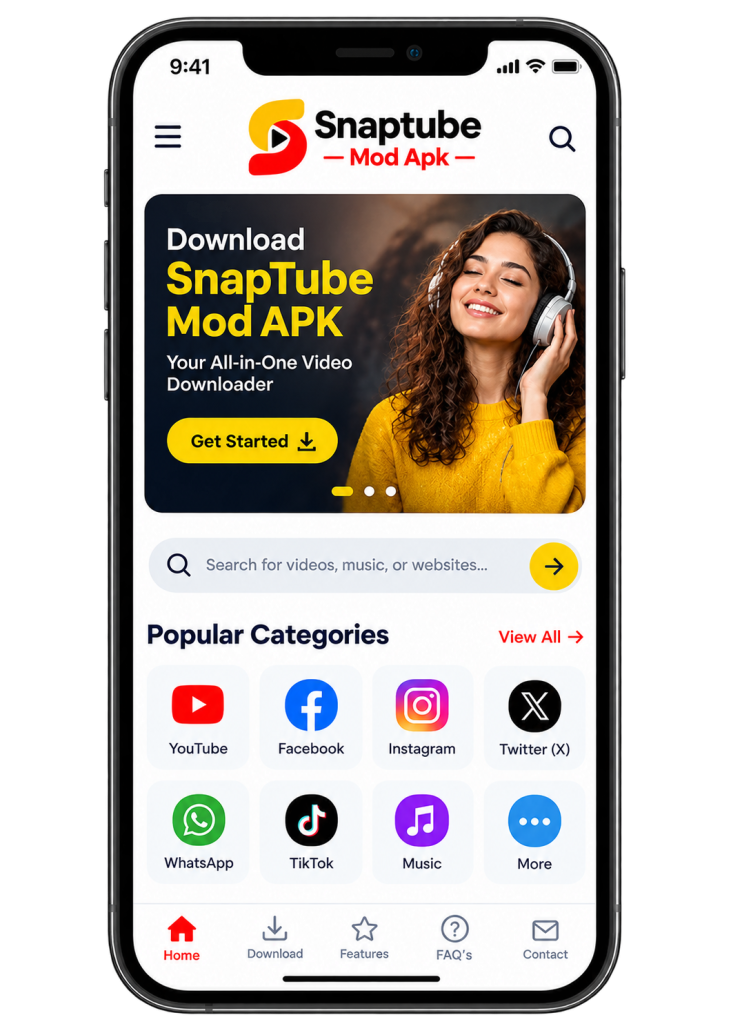
In this guide, you will learn what Snaptube is, how to install it, how to use it, and how to stay safe. We will keep it simple, so anyone can follow along. You will also get a screen-by-screen tour with real screenshots.
What Is Snaptube?
Snaptube is a free video downloader for Android phones. It also works as a music downloader. It helps you save videos and music from websites so you can watch or listen later, even without internet. That is why many people look for Snaptube for Android when they have a slow connection or a long trip ahead.
Think of it like a small bag you carry. You put your favorite videos and songs inside it. Later, you open the bag and enjoy them anywhere.
Snaptube works with many popular sites, such as YouTube, Facebook, Instagram, TikTok, Twitter (now called X), Dailymotion, and SoundCloud. Support for each site can change over time, so check the app’s More tab to see what is listed today. It has a built-in browser, so you can search and find things right inside the app.
Here is one thing to know. Snaptube is not on the Google Play Store. You get it as an APK file, which is just an installer file for Android apps. We will show you how to do that safely below.
Key Features of Snaptube
Why do people like this app? Here are the main reasons.
- Many Websites in One Place You do not need a different app for each website. Snaptube shows popular sites on its search page. Tap one, search for what you want, and you are ready to go. The More tab is even simpler. It lists each site with a short “How to start” button, so you always know what to do next.
- Snaptube Video Downloader MP4 and MP3 Formats You can save a clip as MP4, which is a video file. Or you can save only the sound as MP3, which is a music file. This is helpful when you just want to listen to a song and do not need the picture.Looking for new songs? The Music tab shows playlists and fresh releases. Each one has a small download arrow, so you can save a song in one tap.
- Choose Your Quality Some videos can be saved in small sizes and some in sharp, clear sizes. Smaller files use less data and less phone space. Bigger files look better. You pick what works for you. The choices you see depend on the video itself. Some pages say sizes can go from a small 144p up to 4K, but in our test the video offered 360p and 720p. Picking a small size also works like a data saver, because the file uses less internet.
- Downloads in the Background You can start a download and then use other apps. Snaptube keeps working while you chat or play a game. You can also download more than one file at a time. This is called batch downloading.
- Free to Use The basic app is free. It may show ads to pay for itself. There can also be paid upgrades, so read before you tap anything.
- Extra Tools Inside the App Besides downloads, the Settings page lists a few helper tools. You will see a WhatsApp status saver, a Vault for private files, and phone cleaners like Junk clean and Boost. Use only what you need, and read what each tool asks for before you allow it.
How to Download Snaptube APK for Android (Step by Step)
Installing an APK is a little different from installing from the Play Store. Follow these steps one by one. This step matters most. Many fake websites copy Snaptube to trick people. Always go to the official Snaptube website, and do not trust random links from ads or videos.
On the official site, tap the download button. Your phone may warn you that this type of file can be harmful. This is a normal message for all APK files, so it does not mean the file is bad. It just means your phone wants you to be careful.
- Your phone only trusts the Play Store by default. To install Snaptube, you need to give your browser permission once.
- Open your phone’s Settings.
- Look for Security or Apps and find the option called Install unknown apps.
- Choose the browser you used to download the file.
- Turn on Allow from this source.
- Open the downloaded file and tap Install. Wait a few seconds. When it finishes, tap Open.
A good habit: after you finish installing, go back and turn the unknown sources permission off again. This keeps your phone safer.
Snaptube Latest Version and Updates
Snaptube changes from time to time. The newest version can fix bugs and help downloads work again, so it is smart to keep the app up to date. We do not list a version number here because it changes often. Always check the official website for the latest version.
To update, download the newest APK from the official website and install it over the old app. You do not need to delete the old one first. If you are not sure which version you have, the About page in the app’s Settings is a good place to look.
How to Download Videos and Music with Snaptube Beginner Guide
Using the app is easy. Here is how.
- Open Snaptube.
- Tap a website icon on the home screen, or type a name in the search bar.
- Find the video or song you want and open it.
- Tap the yellow Download button.
- A menu called “Download video as” opens. Choose Music (Fast or Classic MP3) or Video (like 360p or 720p).
- Tap Download one more time.
Your file is now saved. To find it, tap the Play tab at the bottom, then open Downloaded. Tap a file to play it. Got lots of files? Tap the filter icon at the top. You can show only music, only videos, or only pictures.
If your phone storage is almost full, choose a smaller size. A song takes much less space than a movie.
Another Way: Use the Share Button
You can also start from another app. Open a video in YouTube, TikTok or Facebook and tap Share. Then tap More and pick Snaptube from the list. Snaptube opens with that video ready to save. The app even has a short “How to download” guide for each site.
Snaptube vs Snaptube APK vs Snaptube Mod APK
| Feature | Snaptube | Snaptube APK | Snaptube Mod APK |
| Type | Original app | Installation file | Modified version |
| Source | Official source | APK download websites | Third-party sources |
| Installation | Direct install | Manual APK install | Manual APK install |
| Features | Original features | Same as original app | May include extra features |
| Updates | Official updates | Manual updates | Depends on mod creator |
| Security | Safer option | Depends on source | Higher risk |
| Stability | Most stable | Usually stable | May have issues |
| Best For | Regular users | Manual installation | Advanced users |
Open the Settings tab at the bottom, then tap Download settings. Here you can see where your files are saved and how many downloads can run at the same time. You can also set a speed limit. There is a switch for downloading with mobile data too. If your data pack is small, turn it off so downloads only run on Wi-Fi.
Snaptube Screenshot Tour: Screen by Screen
Pictures can say more than words. Here is every screen of the app, in the order you will use it. Each one has a short note that tells you what you are looking at and what to do.
Screen 1: The Home Screen
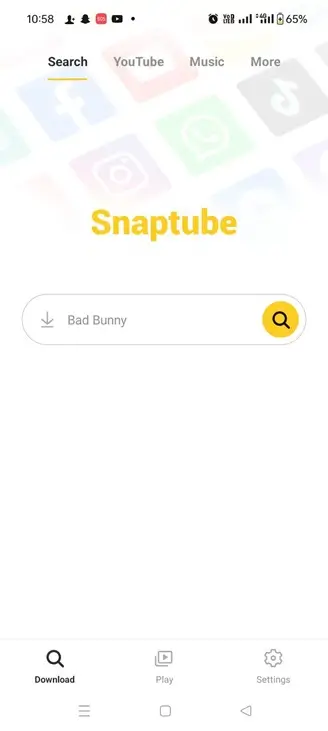
This is the first screen you see. The big yellow word is the app name. Below it is a search bar with a yellow search button. Faded site logos float in the background to show which websites the app works with.
Screen 2: The Search Page
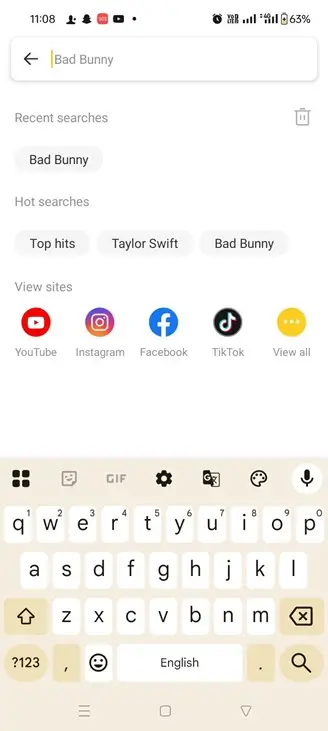
Tap the search bar and this page opens. It shows your recent searches, a few popular searches, and a row of site icons. Tap an icon like YouTube or TikTok to search only on that site.
Screen 3: Search Suggestions
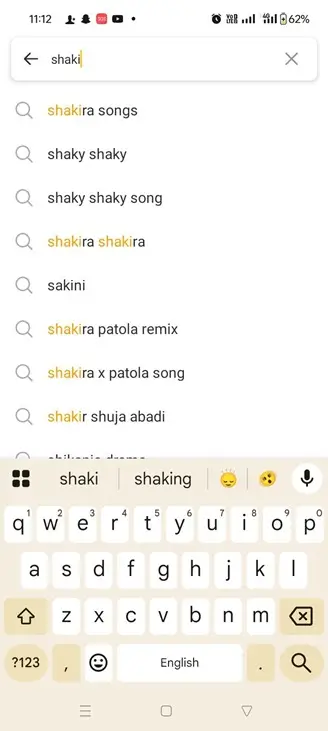
Start typing and the app guesses what you want. Here, a few letters were enough to show full ideas like “shakira songs”. Tap a suggestion to save typing.