
Download Snaptube APK Latest Version Android No Ads
Have you ever found a great song or a funny video and wished you could keep it on your phone? Maybe your internet is slow. Maybe you are going on a long trip. That is where Snaptube comes in.
In this guide, you will learn what Snaptube is, how to install it, how to use it, and how to stay safe. We will keep it simple, so anyone can follow along. You will also get a screen-by-screen tour with real screenshots.
What Is Snaptube?
Snaptube is a free video downloader for Android phones. It also works as a music downloader. It helps you save videos and music from websites so you can watch or listen later, even without internet. That is why many people look for Snaptube for Android when they have a slow connection or a long trip ahead.
Think of it like a small bag you carry. You put your favorite videos and songs inside it. Later, you open the bag and enjoy them anywhere.
Snaptube works with many popular sites, such as YouTube, Facebook, Instagram, TikTok, Twitter (now called X), Dailymotion, and SoundCloud. Support for each site can change over time, so check the app’s More tab to see what is listed today. It has a built-in browser, so you can search and find things right inside the app.
Here is one thing to know. Snaptube is not on the Google Play Store. You get it as an APK file, which is just an installer file for Android apps. We will show you how to do that safely below.
Key Features of Snaptube
Why do people like this app? Here are the main reasons.
- Many Websites in One Place You do not need a different app for each website. Snaptube shows popular sites on its search page. Tap one, search for what you want, and you are ready to go. The More tab is even simpler. It lists each site with a short “How to start” button, so you always know what to do next.
- Snaptube Video Downloader MP4 and MP3 Formats You can save a clip as MP4, which is a video file. Or you can save only the sound as MP3, which is a music file. This is helpful when you just want to listen to a song and do not need the picture.Looking for new songs? The Music tab shows playlists and fresh releases. Each one has a small download arrow, so you can save a song in one tap.
- Choose Your Quality Some videos can be saved in small sizes and some in sharp, clear sizes. Smaller files use less data and less phone space. Bigger files look better. You pick what works for you. The choices you see depend on the video itself. Some pages say sizes can go from a small 144p up to 4K, but in our test the video offered 360p and 720p. Picking a small size also works like a data saver, because the file uses less internet.
- Downloads in the Background You can start a download and then use other apps. Snaptube keeps working while you chat or play a game. You can also download more than one file at a time. This is called batch downloading.
- Free to Use The basic app is free. It may show ads to pay for itself. There can also be paid upgrades, so read before you tap anything.
- Extra Tools Inside the App Besides downloads, the Settings page lists a few helper tools. You will see a WhatsApp status saver, a Vault for private files, and phone cleaners like Junk clean and Boost. Use only what you need, and read what each tool asks for before you allow it.
How to Download Snaptube APK for Android (Step by Step)
Installing an APK is a little different from installing from the Play Store. Follow these steps one by one. This step matters most. Many fake websites copy Snaptube to trick people. Always go to the official Snaptube website, and do not trust random links from ads or videos.
On the official site, tap the download button. Your phone may warn you that this type of file can be harmful. This is a normal message for all APK files, so it does not mean the file is bad. It just means your phone wants you to be careful.
- Your phone only trusts the Play Store by default. To install Snaptube, you need to give your browser permission once.
- Open your phone’s Settings.
- Look for Security or Apps and find the option called Install unknown apps.
- Choose the browser you used to download the file.
- Turn on Allow from this source.
- Open the downloaded file and tap Install. Wait a few seconds. When it finishes, tap Open.
A good habit: after you finish installing, go back and turn the unknown sources permission off again. This keeps your phone safer.
Snaptube Apk Latest Version and Updates
Snaptube changes from time to time. The newest version can fix bugs and help downloads work again, so it is smart to keep the app up to date. We do not list a version number here because it changes often. Always check the official website for the latest version.
To update, download the newest APK from the official website and install it over the old app. You do not need to delete the old one first. If you are not sure which version you have, the About page in the app’s Settings is a good place to look.
How to Download Videos and Music with Snaptube Beginner Guide
Using the app is easy. Here is how.
- Open Snaptube.
- Tap a website icon on the home screen, or type a name in the search bar.
- Find the video or song you want and open it.
- Tap the yellow Download button.
- A menu called “Download video as” opens. Choose Music (Fast or Classic MP3) or Video (like 360p or 720p).
- Tap Download one more time.
Your file is now saved. To find it, tap the Play tab at the bottom, then open Downloaded. Tap a file to play it. Got lots of files? Tap the filter icon at the top. You can show only music, only videos, or only pictures.
If your phone storage is almost full, choose a smaller size. A song takes much less space than a movie.
Another Way: Use the Share Button
You can also start from another app. Open a video in YouTube, TikTok or Facebook and tap Share. Then tap More and pick Snaptube from the list. Snaptube opens with that video ready to save. The app even has a short “How to download” guide for each site.
Snaptube vs Snaptube APK vs Snaptube Mod APK
| Feature | Snaptube | Snaptube APK | Snaptube Mod APK |
| Type | Original app | Installation file | Modified version |
| Source | Official source | APK download websites | Third-party sources |
| Installation | Direct install | Manual APK install | Manual APK install |
| Features | Original features | Same as original app | May include extra features |
| Updates | Official updates | Manual updates | Depends on mod creator |
| Security | Safer option | Depends on source | Higher risk |
| Stability | Most stable | Usually stable | May have issues |
| Best For | Regular users | Manual installation | Advanced users |
Open the Settings tab at the bottom, then tap Download settings. Here you can see where your files are saved and how many downloads can run at the same time. You can also set a speed limit. There is a switch for downloading with mobile data too. If your data pack is small, turn it off so downloads only run on Wi-Fi.
Snaptube Apk Screenshot Tour: Screen by Screen
Pictures can say more than words. Here is every screen of the app, in the order you will use it. Each one has a short note that tells you what you are looking at and what to do.
Screen 1: The Home Screen
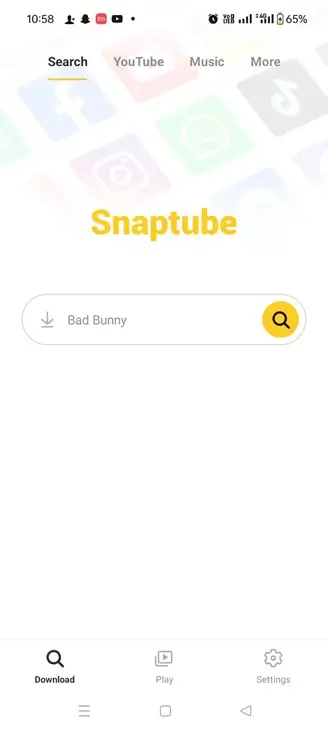
This is the first screen you see. The big yellow word is the app name. Below it is a search bar with a yellow search button. Faded site logos float in the background to show which websites the app works with.
Screen 2: The Search Page
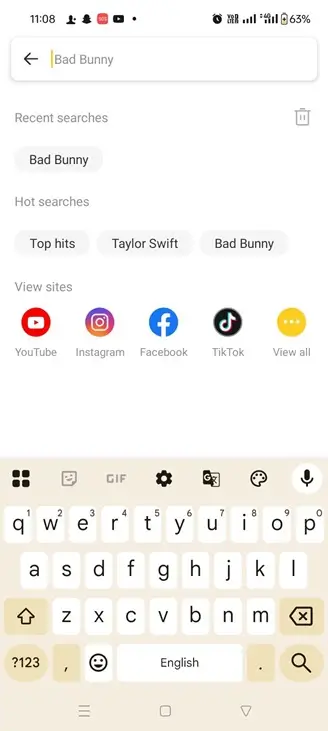
Tap the search bar and this page opens. It shows your recent searches, a few popular searches, and a row of site icons. Tap an icon like YouTube or TikTok to search only on that site.
Screen 3: Search Suggestions
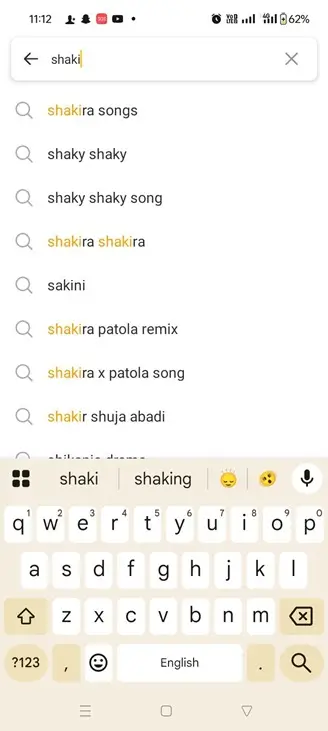
Start typing and the app guesses what you want. Here, a few letters were enough to show full ideas like “shakira songs”. Tap a suggestion to save typing.
Screen 4: Search Results
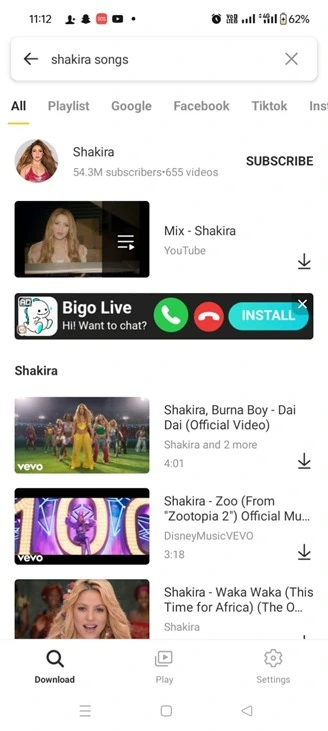
The results show the channel, a list of videos, and the length of each one. See the small arrow at the right of each video? That is the quick download button. You may also see an ad here, so look before you tap.
Screen 5: The Video Page
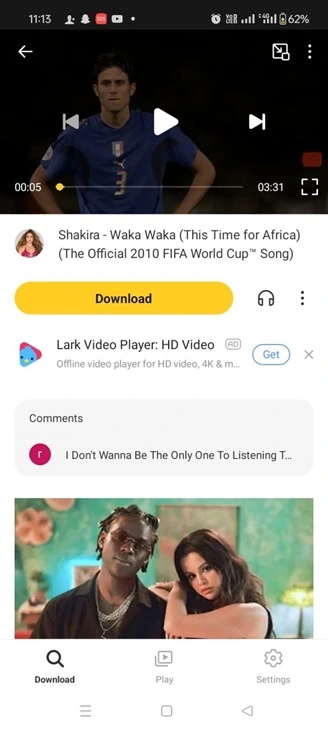
Tap a video and it opens with a player on top. You can play it first to make sure it is the right one. The yellow Download button sits right under the video title.
Screen 6: Choose Your Format
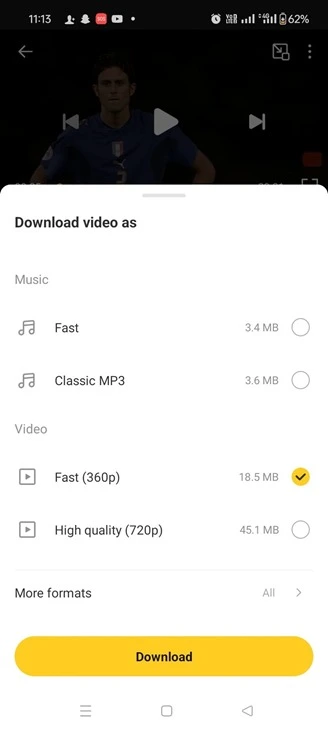
After you tap Download, this menu slides up. The top part is for music, with Fast and Classic MP3. The bottom part is for video, with 360p and 720p. The size of each file is written next to it, so you can pick a small one to save space.
Screen 7: Your Downloaded Files
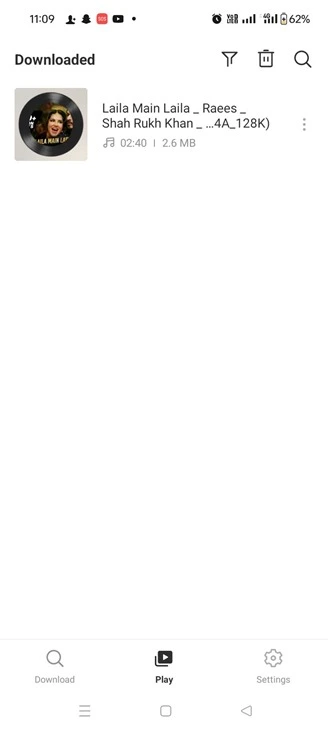
Open the Play tab and you will find Downloaded. Each saved file shows its name, how long it is, and how big it is. Tap the file to play it, even without internet.
Screen 8: Filter Your Files
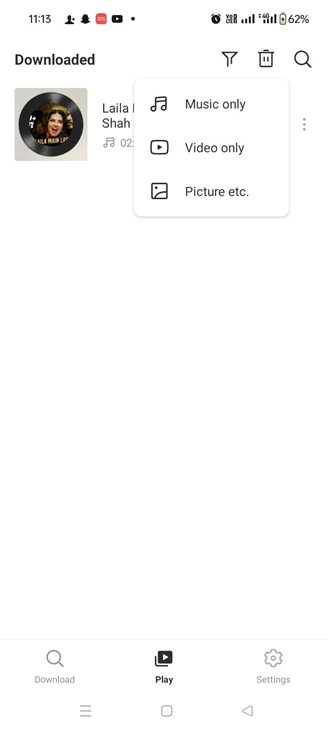
Tap the filter icon at the top to sort your files. You can see only music, only video, or only pictures. This is handy when you have many downloads.
Screen 9: The YouTube Tab
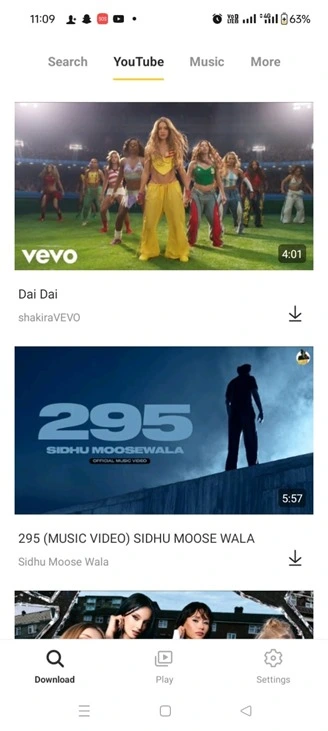
The YouTube tab on the Download page shows a feed of popular videos. You do not have to search. Scroll, pick one, and tap its arrow to download.
Screen 10: The Music Tab
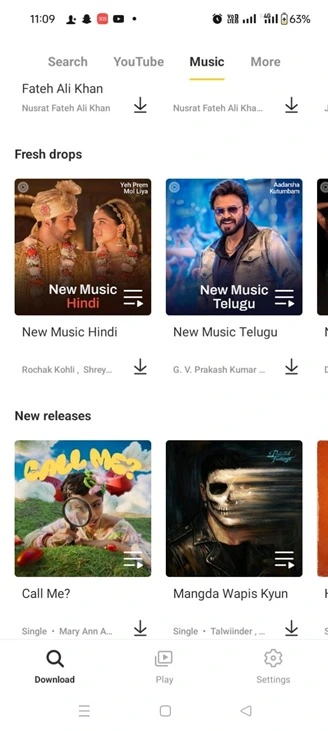
The Music tab is for people who love songs. It groups music into rows like “Fresh drops” and “New releases”. Each card has its own download arrow.
Screen 11: More Music Picks
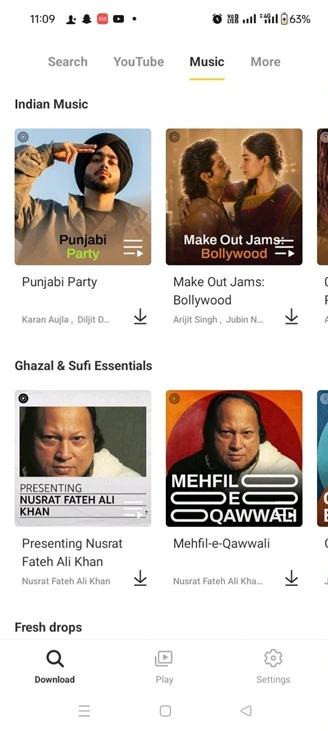
Scroll down in the Music tab and you will find more groups, like Indian Music and Ghazal and Sufi. It is a quick way to find a style you like without typing a word.
Screen 12: The More Tab
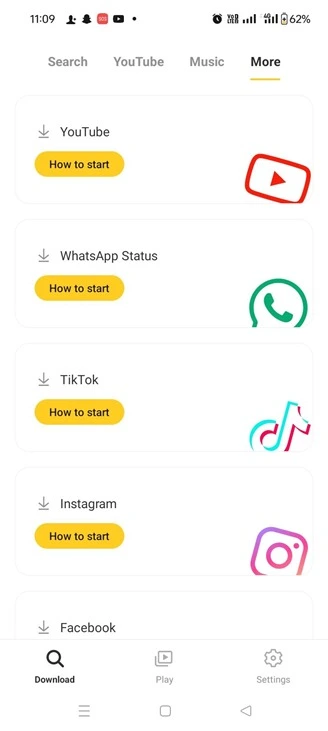
The More tab lists the sites the app supports. Each one has a yellow How to start button. If you ever feel stuck, this is the place to begin.
Screen 13: Guide for YouTube
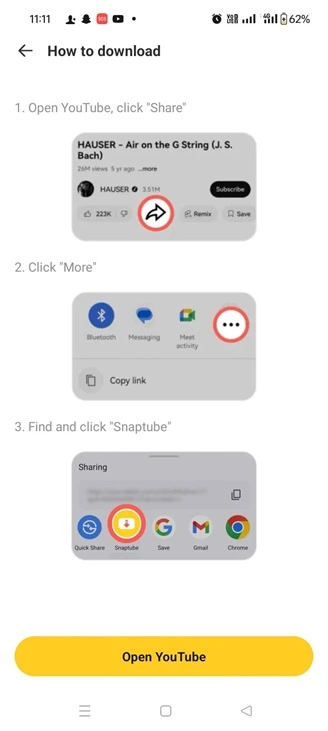
This guide has three small steps. Open YouTube and tap Share. Tap More. Then find Snaptube in the list and tap it. The red circles show you exactly where to tap.
Screen 14: Guide for TikTok
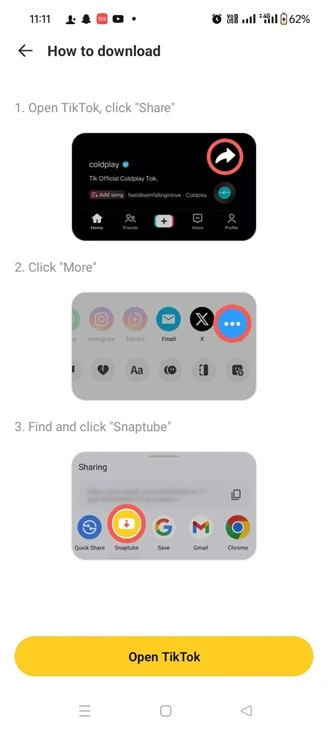
TikTok works the same way. Tap the arrow button to share, then tap More, then choose Snaptube.
Screen 15: Guide for Facebook
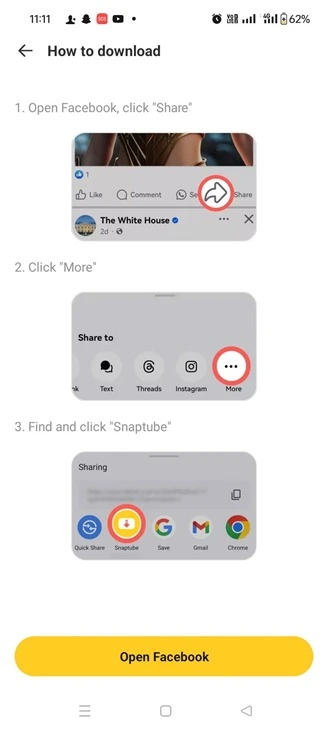
On Facebook, tap the share arrow under a video, tap More in the list, and pick Snaptube. The yellow button at the bottom opens Facebook for you.
Screen 16: Guide for BlueSky
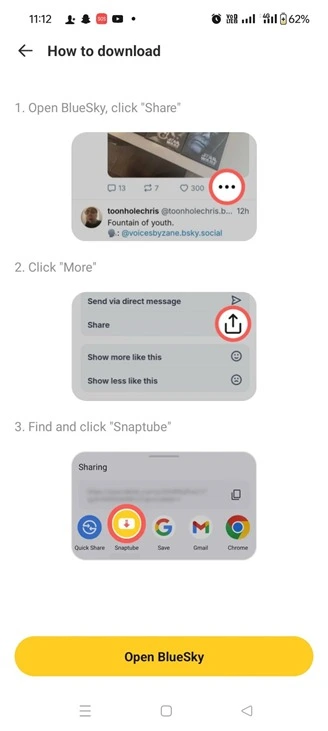
BlueSky is a little different. You start with the three dots, then tap Share, and then pick Snaptube. This shows the app keeps adding more sites over time.
Screen 17: The Settings Page
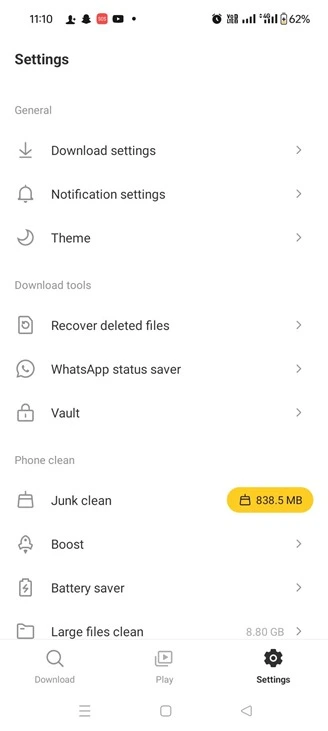
The Settings tab begins with Download settings, Notification settings and Theme. Below that are helper tools like a WhatsApp status saver and a Vault. Only use the tools you need.
Screen 18: More Settings
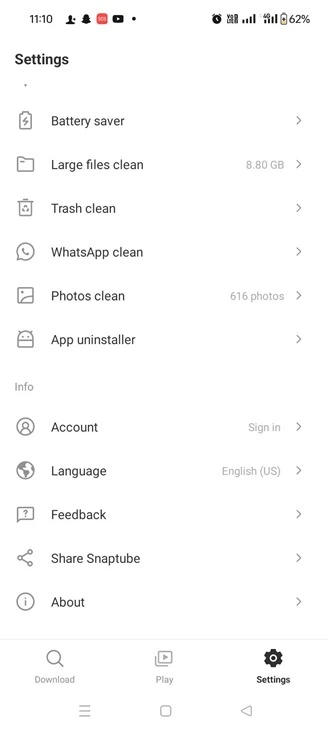
Scroll down and you will see cleaning tools, plus Account, Language, Feedback and About. If you need help or want to change the language, look here.
Screen 19: Download Settings
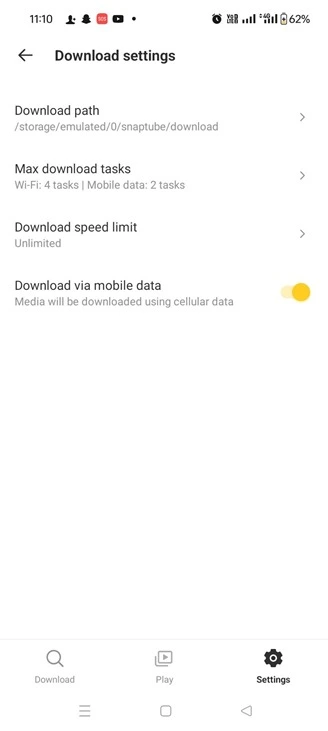
This is the most useful settings page. It shows where files are saved, how many downloads can run at once, and the speed limit. The switch at the bottom lets you decide if downloads may use mobile data.
What We Noticed While Using Snaptube
Reading about an app is one thing. Using it is another. Here is what stood out when we tried it on an Android phone.
It Is Easy to Find Your Way Around
The app has only three tabs at the bottom: Download, Play and Settings. That is all. Even a young child can guess what each one does. When we typed a few letters in the search bar, the app suggested full names right away, just like a search engine. That saved a lot of typing.
How Big Are the Files?
File size matters if your phone storage or data pack is small. We saved one 3 minute 31 second video and looked at the sizes the app offered.
| Choice | File size | Best for |
| Music: Fast | 3.4 MB | Saving data |
| Music: Classic MP3 | 3.6 MB | Songs that play on almost any device |
| Video: Fast (360p) | 18.5 MB | Small screens and slow internet |
| Video: High quality (720p) | 45.1 MB | Sharper picture on a bigger screen |
The 720p video is more than twice the size of the 360p one. If you only want to listen, music is the clear winner. A saved song of 2 minutes 40 seconds took only about 2.6 MB on our phone.
Ads Show Up
Snaptube is free, and we saw why. We spotted a banner ad on the search results page and another ad on a video page. They were labeled as ads, but they can still be easy to tap by mistake. Take a second to look before you tap anything that says Install or Get.
You Can Control Your Data
In Download settings, we saw that the app can run four downloads at once on Wi-Fi, but only two on mobile data. The speed limit was set to unlimited, and the switch for mobile data was turned on. If your data pack is small, turn that switch off. Then Snaptube will wait for Wi-Fi.
What We Liked and What We Did Not
What we liked
- Simple screens and big buttons
- Search and download in the same app
- Clear size choices before you download
- Short “How to download” guides for each site
What we did not like
- Ads on several screens
- It is not on Google Play, so you must be careful where you download it
- Only for Android
Our Verdict
Snaptube is a good pick if you want something simple that works. Pick a smaller size to save space, keep an eye on the ads, and download only from the official website. Do that, and it is easy to use.
Is Snaptube Safe?
This is the question people ask the most, and it is a smart one.
The honest answer is this: the real app from the official website is widely used. But the internet is full of fake copies. A fake copy can show too many ads, steal information, or put harmful software, also called malware, on your phone.
Here is how to stay safe.
- Use only the official website. Never download from a site you do not know.
- Be careful with “MOD” versions. A MOD APK is a changed copy made by someone else. These often promise free upgrades, but they can hide dangerous code. It is best to avoid them.
- Check permissions. A downloader needs to save files and use the internet, so access to storage and the network makes sense. It does not need your contacts or messages. If an app asks for things it does not need, say no or do not install it.
- Keep Google Play Protect on. It scans your apps. You may see a warning for apps outside the Play Store. Read it carefully and do not just ignore it.
- Use a security scan if you want extra care. Websites like VirusTotal can check a file before you open it. Upload the APK there and see if any security tool flags it.
Think of it like crossing the road. The road is not scary if you look both ways first.
One more thing to remember. Because Snaptube is not on Google Play, the Play Store does not review it. So most of the safety checks are up to you. Read recent user reviews, keep your phone updated, and stop using the app if anything feels strange.
Is Snaptube Legal?
The app itself is just a tool. What matters is what you download with it.
Most websites have rules about this. YouTube’s Terms of Service, for example, generally say you should not download videos unless YouTube gives you a download button or link. Many videos and songs are also protected by copyright. That means the person who made them owns them.
So here is a simple rule of thumb:
- Fine: Downloading your own videos, free music that the creator allows you to save, or content with a clear permission.
- Not fine: Downloading movies, songs, or shows that someone owns and sells, then sharing them or using them to make money.
Laws are different in each country. Some places have copyright laws like the DMCA in the United States, and some have small “fair use” exceptions. These exceptions are narrow, and they do not let you download anything you like. If you are not sure, check the rules for the site and for where you live. When you can, support creators by watching on the original site or buying their music.
Snaptube for iPhone and How to Use Snaptube on a PC (With an Android Emulator)
Many people ask if they can use Snaptube on other devices.
Snaptube for iPhone: Snaptube is made for Android. There is no official iPhone version. Be careful of websites that say they have one, because these are often fake.
Snaptube for PC (computer or laptop):
There is no official Snaptube for Windows or Mac. But you can still use it on a computer with an Android emulator. An emulator is a free program that makes your computer act like an Android phone. Follow these steps.
- Pick an emulator. Popular choices are BlueStacks and NoxPlayer. Download it only from its official website.
- Install the emulator. Open the file you downloaded and follow the on-screen steps. This may take a few minutes.
- Open the emulator. You will see a screen that looks like an Android phone.
- Download the Snaptube APK. Open the browser inside the emulator and go to the official Snaptube website. You can also download the APK on your computer first and then add it to the emulator.
- Install Snaptube. Open the APK file inside the emulator and tap Install. If the emulator asks for permission to install apps from outside the Play Store, allow it.
- Open Snaptube and start. Use it just like you do on your phone: search, tap Download, and pick your format.
Snaptube Not Working? Common Problems and Easy Fixes
Sometimes apps act up. Here are the usual problems and what to try.
The download will not start.
Check your internet first. Then close the app and open it again.
The app says there is not enough space.
Your phone is full. Delete old files or apps you do not use, then try again.
The app is slow or keeps crashing.
Try clearing the app cache in your phone’s settings. If it still has trouble, update to the newest version from the official site.
A video or song cannot be downloaded.
Some websites change how they work, and this can block downloads for a while. Updating the app often helps.
The app will not install.
Make sure you allowed unknown sources, and check that the file fully downloaded. If it did not, download it again.
Snaptube vs VidMate vs TubeMate
Snaptube is not the only app like this. Here is a simple look at how three popular ones compare.
| Snaptube | VidMate | TubeMate | |
| Works on | Android | Android | Android |
| Easy to use | Very easy | Easy | Medium |
| Built-in browser | Yes | Yes | Yes |
| Music (MP3) | Yes | Yes | Yes |
| Ads | Some | Many | Many |
| On Google Play | No | No | No |
These details can change as apps update, so check each app’s official site before you decide. Many people like Snaptube because its design is clean and simple.
Best Snaptube Alternatives
If Snaptube does not work for you, here are other options to look at.
- NewPipe: A free, open-source app. Many people trust it because anyone can look at its code.
- YMusic: Good if you mostly care about listening to music in the background.
- Videoder: Another downloader with a built-in browser.
- TubeMate: One of the older and better-known options.
There is also a safe option that needs no extra app. YouTube Premium lets you save videos for offline viewing inside the official app. It costs money, but it is made by the site itself, so there are no worries about rules.
Frequently Asked Questions
Conclusion
Snaptube for Android is a simple tool for saving videos and music to your phone. It is easy to use, has a built-in browser, and works with many popular sites.
But a few smart habits go a long way. Download only from the official website. Stay away from MOD versions. Respect copyright and the rules of each site. Do these things, and you can enjoy your favorite videos and songs anytime, anywhere.
Have you tried Snaptube? Share your experience in the comments, and tell us what problems you ran into so we can help.